


Want viewers to comment on your videos? Here’s how to turn YouTube comments on from desktop or mobile.
If you have uploaded a video and noticed that viewers cannot comment, the cause is usually easy to fix. In my experience working with YouTube content and SEO, the most common issue is simply that comments were disabled for that particular video. Enabling them helps you get more comments on your YouTube video and build audience engagement.
However, YouTube can also restrict comments because of audience settings, privacy settings, or other account and content restrictions.
In this guide, I’ll show you how to turn on comments on YouTube, how to change your default settings, how to enable comments on Shorts and mobile, and what to check if comments still aren't showing.
How to Turn On Comments on YouTube on Desktop
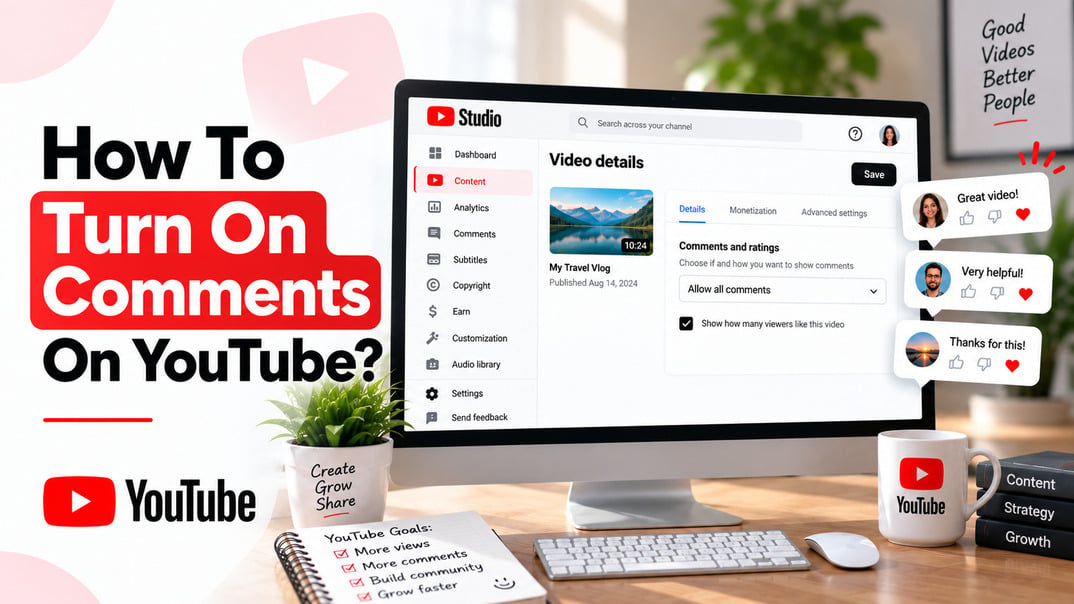
The easiest way to manage comments from a computer is through YouTube Studio. By going through your YouTube creator studio settings, you can change the option for an individual video, manage several videos at once, or configure your default settings for future uploads.
Enabling Comments Per YouTube Video via Desktop
To turn on comments for a video you've already uploaded:
-
Sign in to YouTube Studio.
-
Select Content from the menu on the left.
-
Find the video you want to edit.
-
Scroll down and select Show more.
-
Find Comments and ratings.
-
Select the comment setting you want and click Save
That's it. Your selected comment setting will apply to that video.
If you're managing a large channel, you don't necessarily need to repeat these steps for every upload. YouTube Studio also provides bulk-editing functionality for changing settings on multiple videos, which can help you grow your reach and get more subscribers.
If the comment option isn't available, don't assume that YouTube Studio is broken. Check the video's audience and privacy settings first.
Changing Comment Visibility Settings via Moderation
Turning comments on doesn't mean you have to allow every comment to appear immediately.
YouTube gives creators moderation controls that can automatically hold potentially inappropriate comments for review. Depending on your settings, comments can be filtered before they appear publicly.
You can manage broader comment controls through:
YouTube Studio → Settings → Community moderation → Content controls
These controls can include comment moderation, blocked words, link filtering, and other tools that help you manage your community.
I recommend starting with moderate filtering for most growing channels to disable spam comments automatically. If spam becomes a problem, tighten the settings instead of turning comments off completely.
Allow or Disable YouTube Comments for All New Videos on Desktop
If you want comments to be enabled automatically whenever you upload a new video, configure your default comment settings in YouTube Studio.
Go to:
Settings → Community moderation → Content controls
Choose your preferred settings for comments on new videos and posts, then save your changes.
There is one important distinction here: default settings apply to future uploads.
Changing your default setting won't automatically turn comments on for videos you've already published.
For older videos, change the setting on the individual video or use YouTube Studio's bulk-editing tools.
How to Enable Comments on YouTube on Mobile
You can also manage comments from your phone using the YouTube app.
This is particularly convenient if you've just published a video and notice that comments aren't enabled.
Turn On Comments via the YouTube App for Single Videos
To change comments for an individual video:
- Open the YouTube app and sign in.
- Go to one of your videos.
- Tap Comments below the video.
- Tap Settings.
- Find the comment setting for the video.
- Select your preferred option.
YouTube documents this process for changing the comment setting on individual videos through the mobile app.
Changing Comment Visibility Settings for YouTube App
You can do more than simply switch comments on or off. Moderating your comment section effectively can also help increase comment likes and foster positive engagement.
Your comment settings determine how YouTube handles comments before they become visible. Depending on the moderation level you select, potentially inappropriate comments may be held for review.
You can then review these comments in YouTube Studio and decide whether to publish or remove them.
This is worth using if your channel receives regular comments. In my experience, a little moderation is much easier to manage than dealing with a completely unfiltered comment section.
Allow or Disable YouTube Comments for All New Videos on Mobile
You can change individual video settings from the YouTube app, but the full range of channel-level controls is available through YouTube Studio.
If you want a consistent comment policy for future uploads, configure your default settings under Community moderation → Content controls in YouTube Studio.
Again, remember that changing the default does not retroactively change your existing videos.
How to Turn On Comments on YouTube Shorts
YouTube Shorts have their own viewing interface, but creators can still manage comments for individual Shorts.
To turn comments on for a Short using the YouTube app:
- Open YouTube and sign in.
- Go to your Short.
- Tap Comments on the right side of the Short.
- Tap Settings.
- Change the comment setting for the Short.
YouTube specifically includes Shorts in its instructions for managing comment settings on mobile.
If you publish a lot of Shorts, moderation becomes especially important because Shorts can generate large volumes of interactions in a short period.
How to Turn On Comments for Multiple YouTube Videos
If comments are disabled on several older videos, you don't have to open and edit every video separately.
YouTube Studio supports bulk editing, allowing you to select multiple videos and change their comment settings together.
Bulk editing is useful when:
- you've recently changed your channel's comment strategy
- comments were accidentally disabled on multiple videos
- you're updating an older content library
- you want a consistent comment policy across several uploads
Before applying a bulk change, make sure all selected videos should have the same setting. I wouldn't automatically apply one policy to an entire channel if the videos cover very different audiences or topics.
Why Are Comments Turned Off on My YouTube Video?
If you can't enable comments, there may be a reason YouTube is preventing the setting from being changed.
Your Video Is Marked "Made for Kids"
This is one of the most common reasons comments aren't available.
YouTube disables comments on videos designated as Made for Kids. You cannot simply override the restriction by changing the comment setting.
If your audience designation is incorrect, review the video's audience setting in YouTube Studio.
Don't change a video from Made for Kids simply to enable comments. Your audience designation needs to accurately reflect the content.
Your Video Is Private
Private YouTube videos cannot have comments.
If you need to restrict who can access a video while still allowing interaction, an Unlisted video may be more appropriate.
The distinction is important:
- Public: anyone can find and watch the video, subject to YouTube restrictions.
- Unlisted: the video doesn't normally appear in search or on your channel's public video tab, but people with the link can access it.
- Private: access is restricted and comments aren't available.
YouTube recommends using unlisted videos when appropriate if you need a video to remain outside public listings while still allowing comments.
You're Using a Supervised Account
Some comment controls aren't available for supervised experiences.
If you can't change the setting even though the video isn't Made for Kids or private, check whether the account is subject to supervision or other restrictions.
Age Restrictions and COPPA Compliance
Age and child-safety rules can affect YouTube comment functionality.
COPPA, the Children's Online Privacy Protection Act, is a U.S. law concerning the collection of personal information from children under 13. YouTube uses audience-designation requirements to help creators identify content that is directed toward children.
For creators, the important takeaway is straightforward: your audience designation should accurately reflect your content.
If a video is correctly designated Made for Kids, comments will not be available.
An age-restricted video and a Made for Kids video are not the same thing, so don't treat the two settings as interchangeable.
Violating YouTube's Community Guidelines
YouTube's Community Guidelines apply to content uploaded to the platform and to other forms of user activity, including comments.
If YouTube takes enforcement action against your video or channel, certain features may be restricted.
If comments disappear after receiving a YouTube policy notification, check YouTube Studio and your account notifications before changing settings repeatedly.
I recommend identifying the reason for the restriction first. Trying to work around a policy restriction won't solve the underlying issue and could create additional problems.
Comments Still Not Showing? Troubleshooting Common Problems
If you've enabled comments but viewers still can't see them, check these issues in order.
1. Check the individual video setting
Open the video in YouTube Studio and check Comments and ratings.
Don't rely on your channel's default setting. An older video may have a different comment setting.
2. Check whether comments are being held
A comment can be submitted by a viewer without immediately becoming publicly visible.
YouTube can hold comments for moderation, including comments that may be spam or potentially inappropriate.
Check the Held section in YouTube Studio.
3. Check the audience setting
If the video is marked Made for Kids, comments won't be available.
4. Check the video's privacy
Private videos don't support comments.
5. Check your moderation filters
Review your blocked words and other moderation settings if legitimate comments seem to be disappearing.
6. View the video as a viewer
Open the video in another browser or an incognito window.
This is one of the simplest ways to determine whether the problem is specific to your account or affects viewers generally.
How to Ensure Your Comments Stay Enabled
If you want to keep comments available consistently, I recommend checking five things:
- Use the correct audience setting. Don't incorrectly classify content as Made for Kids or change the designation simply to obtain comments.
- Check privacy settings. Private videos can't have comments.
- Set appropriate moderation. Overly aggressive filtering can hide legitimate viewer comments.
- Review blocked words and links. Your moderation rules can affect what viewers see.
- Follow YouTube's policies. Policy restrictions can affect content and channel functionality.
YouTube also allows creators to manage blocked words, hidden users, potentially inappropriate comments, and comments containing links.
For most creators, my preference is to keep comments enabled and improve moderation rather than disable comments altogether.
That way, viewers can still participate while you retain control over spam and inappropriate discussions.
How to Moderate YouTube Comments After Turning Them On
Once comments are enabled, you have several ways to manage the conversation.
You can review comments, reply to viewers, like comments, heart them, pin selected comments, remove comments, and hide users where those features are available.
YouTube also provides moderation tools for:
- potentially inappropriate comments
- spam
- blocked words
- links
- hidden users
- subscribers and members
- comments awaiting review
You can also choose stricter moderation settings if your channel attracts a lot of spam.
I recommend making moderation part of your normal YouTube workflow rather than waiting until the comment section becomes difficult to manage.
Should You Turn On Comments on YouTube?
For most channels, yes.
Comments give viewers another way to interact with your content, and their value goes far beyond basic engagement.
I use comments as a source of audience research.
Pay attention to questions viewers repeatedly ask. Look for objections, confusion, requests for additional information, and topics people want you to cover.
For example, if several viewers ask the same question beneath a tutorial, that question can become the subject of your next video.
This creates a useful content cycle:
Video → viewer comments → audience questions → new content → more viewers
YouTube comments can therefore provide qualitative information that you won't get from view counts alone.
How to Use YouTube Comments to Generate Content Ideas
Don't just look at how many comments a video receives. Look at what people are actually saying.
I recommend creating a simple list of recurring:
- questions
- problems
- requests
- objections
- misconceptions
- feature requests
- follow-up topics
These can become new videos, Shorts, blog posts, FAQs, or community posts.
This approach is particularly useful for creators trying to build a content strategy around what their existing audience actually needs, helping you grow naturally rather than guessing what topics might work.
YouTube Studio can also provide comment-related insights and management features for eligible creators, helping you identify patterns in audience feedback.
What Happens If You Turn Comments Off and Then Turn Them Back On?
Turning comments off doesn't permanently delete the existing comments on a video.
YouTube says that when comments are turned off, existing comments are hidden. If you turn comments back on, those existing comments become visible again.
YouTube also offers a Pause option.
This can be useful when you want to stop receiving new comments temporarily without removing the existing conversation. Existing comments remain available while new comments are paused.
For a sudden wave of spam, I would consider pausing comments or increasing moderation before permanently disabling the discussion.
Read more: How to Get More Likes on YouTube: What Actually Moves the Number
Final Take
Enabling YouTube comments is one of the simplest ways to build a community and gather valuable feedback from your audience. Keep your channel settings properly configured, enforce clear moderation guidelines, and use viewer comments to guide your future content strategy.
Frequently Asked Questions
How do I enable comments on YouTube?
Open YouTube Studio, select Content, choose your video, click Show more, find Comments and ratings, select your preferred setting, and save the changes.
How do I turn on comments on a YouTube video?
Go to YouTube Studio → Content, open the video, select Show more, find Comments and ratings, choose the option that allows comments, and click Save.
How do I turn on comments on YouTube Shorts?
Open your Short in the YouTube app, tap Comments, then Settings, and change the comment setting for the Short.
How do I turn on comments on YouTube on desktop?
Sign in to YouTube Studio, select Content, open your video, select Show more, find Comments and ratings, choose your preferred comment setting, and save.
How do I turn on comments on YouTube on mobile?
Open the YouTube app, go to one of your videos, tap Comments, select Settings, and change the comment setting for that video.
How do I enable comments for all new YouTube videos?
Go to YouTube Studio → Settings → Community moderation → Content controls and configure your default comment settings for future uploads.
Why can't I turn on comments on my YouTube video?
The video may be marked Made for Kids, set to Private, or associated with an account or experience where comment settings are restricted. Check these settings first.