


How to track watch hours in YouTube Studio is one of the first things I recommend learning when you're serious about growing a YouTube channel. Whether you want to increase watch hours, monitor video performance, or work toward monetization, knowing where to find your watch time helps you make smarter content decisions. Here's how I check them, understand what counts, and troubleshoot missing data.
How to Track Watch Hours in YouTube Studio
YouTube Studio gives you two ways to monitor watch hours, depending on what you want to measure.
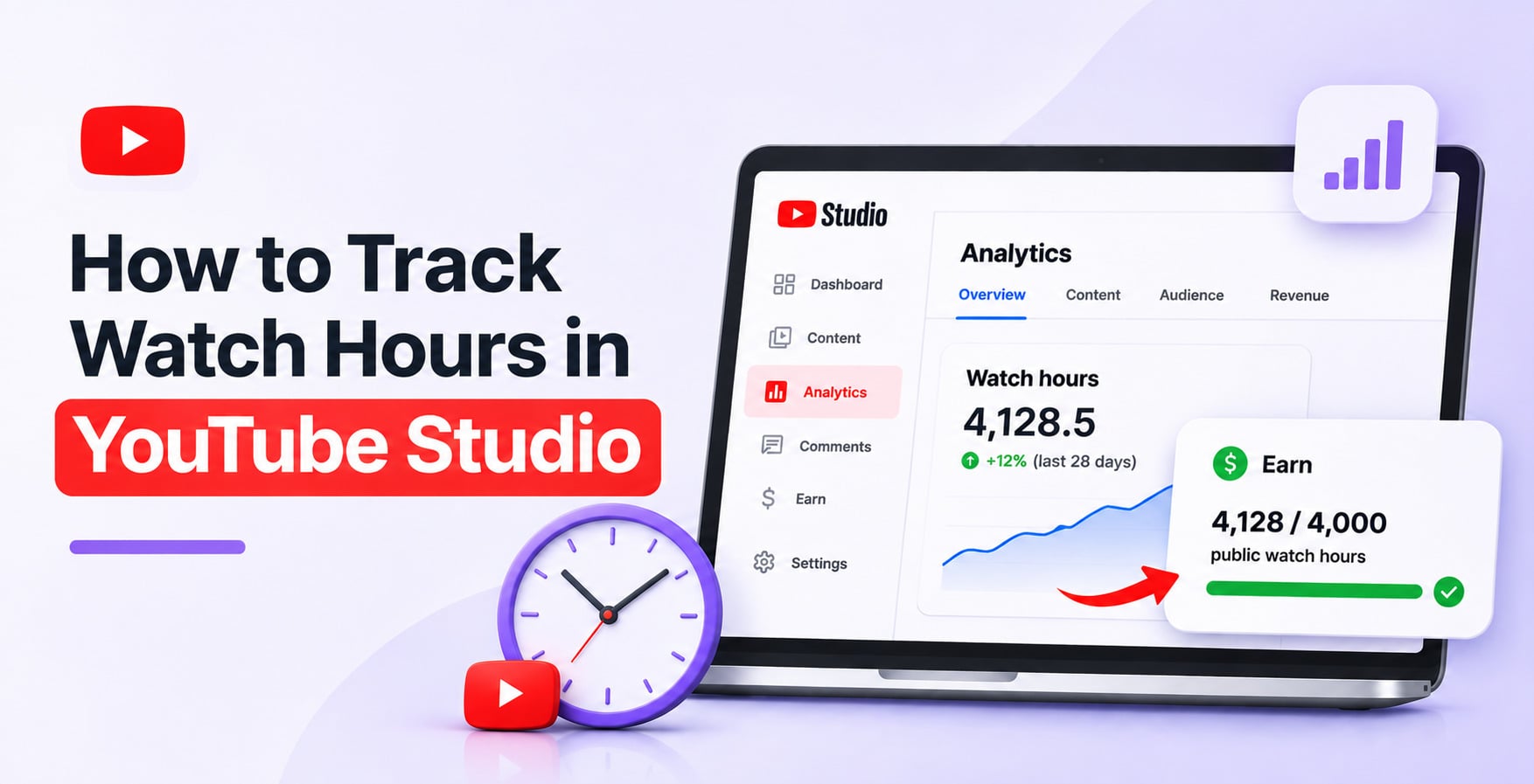
I use the Analytics tab to understand how viewers interact with my content and the Earn tab to check progress toward YouTube Partner Program (YPP) eligibility.
Step 1: Open YouTube Studio
First, sign in to the Google account associated with your YouTube channel.
Go to YouTube Studio. You'll land on your channel dashboard, where you can access your videos, analytics, comments, and monetization settings.
Step 2: Open Analytics
From the left-hand menu, click Analytics.
The Overview tab provides a summary of your channel's performance, including views, watch time, subscribers, and estimated revenue if your channel is monetized.
Look for the Watch time (hours) metric. This shows how much time viewers have spent watching your content during the selected reporting period.
Step 3: Choose Your Date Range
YouTube Studio lets you adjust the reporting period to see how your watch time changes.
Click the date range selector in the upper-right corner of Analytics.
You can choose from options such as:
-
Last 7 days
-
Last 28 days
-
Last 90 days
-
Last 365 days
-
Lifetime
-
A custom date range
I recommend checking both recent performance and longer-term trends. For example, comparing the last 28 days with the previous 28 days can help you determine whether your content is generating more watch time.
Important: The date range in Analytics is not necessarily the same as the rolling 12-month period used to calculate monetization eligibility.
How to Check Public Watch Hours for Monetization
If your goal is to monetize your channel, the Earn tab is the most important place to check.
YouTube distinguishes between total watch time and valid public watch hours. Not every hour shown in Analytics contributes toward the 4,000-hour monetization threshold.
Step 1: Open the Earn fTab
In YouTube Studio, click Earn in the left-hand menu.
This section provides information about your channel's monetization eligibility, including subscriber progress and valid public watch hours.
Step 2: Check Your Public Watch Hours
Look for the eligibility progress section.
If you're working toward the standard long-form video monetization threshold, YouTube displays your progress toward 4,000 valid public watch hours in the last 12 months.
The full advertising revenue eligibility requirements generally include:
-
1,000 subscribers
-
4,000 valid public watch hours in the previous 12 months, or the alternative Shorts eligibility route
Meeting the watch-hour threshold alone doesn't guarantee acceptance into the YouTube Partner Program. Your channel must also meet YouTube's other eligibility requirements and pass its review.
Step 3: Monitor Your Progress Regularly
I recommend checking your Earn tab at least once a week if monetization is your primary goal.
This helps you understand how close you are to eligibility and whether your recent content is contributing to your progress.
Remember that the Earn tab and Analytics may show different figures. That's normal because they measure different things.
Read more: What Are Valid Public Watch Hours on YouTube?
How to Check YouTube Watch Hours on Mobile
You don't need a computer to monitor your channel's watch time. The YouTube Studio mobile app provides access to important analytics.
Using the YouTube Studio App
-
Open the YouTube Studio app on your phone.
-
Select Analytics from the bottom menu.
-
Open the Overview tab.
-
Look for Watch time (hours).
-
Adjust the reporting period if the option is available.
You can also check individual video performance by opening Content, selecting a video, and viewing its Analytics.
Can I Check Public Watch Hours on Mobile?
You can access channel monetization information through the YouTube Studio app, although the exact interface may vary by app version and account.
If you can't find your public watch-hour eligibility figure, I recommend opening YouTube Studio in a desktop browser and navigating to Earn.
The desktop interface is generally easier for reviewing detailed monetization information.
How to Track Watch Time for Individual Videos
Tracking channel-wide watch time is useful, but I find that video-level analytics provide much more actionable information.
Here's how to check the watch time generated by a specific video:
-
Open YouTube Studio.
-
Select Content from the left-hand menu.
-
Click the video you want to analyze.
-
Open its Analytics tab.
-
Review the Overview and Engagement sections.
Read more: Does YouTube Count Your Own Views? How View Counting Really Works
Which Watch Hours Count Toward YouTube Monetization?
This is where many creators get confused.
YouTube Analytics reports watch time from different sources, but the Earn tab only counts eligible public watch hours toward the standard 4,000-hour threshold.
YouTube's eligibility rules can change, so I recommend checking the official YouTube Partner Program documentation before making monetization decisions.
The key takeaway is that watch time in Analytics and valid public watch hours in Earn are not interchangeable metrics.
Why Are My YouTube Watch Hours Not Showing?
If your watch time seem incorrect or haven't updated, don't immediately assume something is wrong with your channel.
There are several possible explanations.
Watch Hours Are Still Updating
YouTube Analytics and monetization eligibility reporting don't necessarily update at the same time.
Some differences between the two figures are expected. Give the reporting systems time to process new activity before drawing conclusions.
Watch Hours Are Missing From the Earn Tab
The Earn tab only includes eligible public watch hours.
If your watch time comes from Shorts Feed views, private videos, unlisted videos, deleted videos, or ad campaigns, it won't contribute toward the standard 4,000-hour threshold.
My Watch Hours Have Dropped
The 4,000-hour requirement uses a rolling 12-month window.
This means watch hours earned more than 12 months ago eventually stop counting toward eligibility.
For example, if your channel generated 500 eligible watch hours in November last year, those hours will eventually fall outside the qualifying period this November.
My Watch Hours Show as Zero
If your channel is new, it may simply not have accumulated enough eligible activity yet.
If you already have substantial watch time, check that you're viewing the correct channel and reporting period. Then review your video's privacy settings and the Earn tab.
If the issue persists, consult YouTube Help for account-specific guidance.
How to Increase YouTube Watch Hours
Once you know how to track watch hours, the next step is understanding how to improve them.
Here are the strategies I would prioritize:
1. Create content around audience demand. Research topics your target viewers are actively searching for and develop videos that answer their questions.
2. Improve your video introductions. Get to the point quickly. Long introductions can cause viewers to leave before reaching the main content.
3. Use playlists strategically. Group related videos together to make it easier for viewers to continue watching your content.
4. Analyze audience retention. Look for sections where viewers drop off. Use those insights to improve future videos.
5. Build a consistent publishing schedule. Consistency helps you develop a recognizable content library and gives viewers a reason to return.
I also recommend reviewing your best-performing videos regularly. Understanding why certain videos generate more watch time can help you make better content decisions instead of relying on guesswork.
Read more: Best and Most Effective Ways to Increase the Watch Time on YouTube
Frequently Asked Questions
1. How do I check my watch hours on YouTube?
Open YouTube Studio, select Analytics, and look for Watch time (hours) in the Overview tab. If you want to check watch hours that count toward monetization, open the Earn tab and review your valid public watch-hour progress.
2. How do I check my 4,000 watch hours on YouTube?
Open YouTube Studio and click Earn in the left-hand menu. Under the eligibility section, you'll find your progress toward 4,000 valid public watch hours in the previous 12 months, provided you're pursuing the long-form video eligibility route.
3. How can I see total watch time on my YouTube channel?
Go to YouTube Studio, open Analytics, and select the date range you want to review. Choose Lifetime to view your channel's historical watch-time data, where available. The figure represents reported watch time, not necessarily eligible monetization hours.
4. Can I check YouTube watch time on my phone?
Yes. Open the YouTube Studio mobile app, select Analytics, and check Watch time (hours). You can also review individual video analytics. For detailed monetization eligibility information, the desktop version may be easier to navigate.
5. Why are my YouTube watch time not updating?
YouTube Analytics and monetization eligibility reporting may update at different times. Watch hours from ineligible sources also won't appear in the Earn tab. If your figures seem incorrect, check the reporting period, video privacy settings, and official YouTube eligibility rules.
6. Do YouTube Shorts count toward 4,000 watch hours?
No. Watch time generated from views in the Shorts Feed does not count toward the standard 4,000 valid public watch-hour requirement. Shorts creators can pursue the alternative YPP eligibility route based on valid public Shorts views.
7. Do livestreams count toward YouTube watch hours?
Eligible public livestream watch time can count toward monetization. However, livestreams that are unlisted, deleted, or not converted to public video-on-demand content may not qualify. Always check YouTube's current eligibility rules for livestreams.
8. Do private or unlisted videos count toward monetization watch hours?
No. Watch time from private and unlisted videos does not count toward the standard 4,000 public watch-hour threshold. If monetization eligibility is your goal, make sure your qualifying long-form content is publicly available.
9. Do watch hours expire on YouTube?
Watch time doesn't disappear from your channel's historical Analytics simply because they're old. However, for monetization eligibility, YouTube uses a rolling 12-month period. Hours earned more than 12 months ago eventually stop contributing toward the 4,000-hour threshold.
10. How long does YouTube take to update public watch hours?
YouTube doesn't guarantee that every watch-hour metric will update at the same time. Analytics and Earn may show different figures while reporting data is being processed. Check again later and consult YouTube Help if the discrepancy persists.
11. Can I see exactly when someone watched my YouTube video?
YouTube Studio provides aggregated analytics, including watch time, audience retention, and viewing trends. It doesn't generally identify individual viewers or provide a precise personal viewing history for each person.
12. What is the difference between watch time and average view duration?
Watch time measures the total amount of time viewers spend watching your videos. Average view duration measures how long viewers watch a video on average. Both metrics are useful for understanding performance, but they answer different questions.